No description
| cores | ||
| github | ||
| other/DinguxCommander | ||
| skeleton | ||
| src | ||
| toolchain | ||
| .gitignore | ||
| commits.sh | ||
| makefile | ||
| notes.txt | ||
| README.md | ||
| start-toolchain.sh | ||
| todo.txt | ||

FinUI
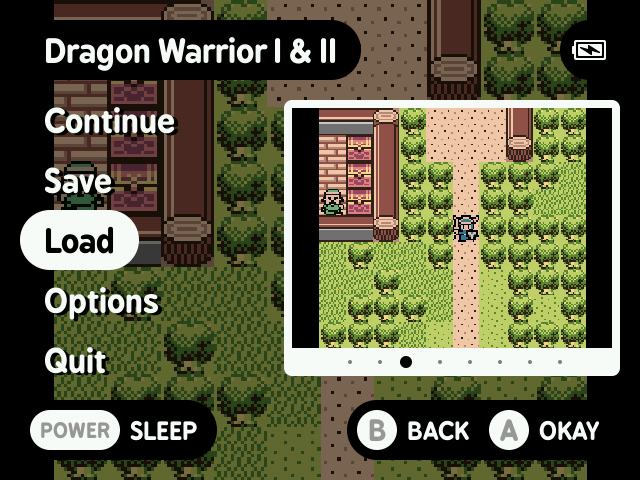
FinUI is a fork of MinUI. MinUI is a focused custom launcher for the Anbernic RG35XX. FinUI adds additional features on top of MinUI.
Features
MinUI features
- Simple launcher, simple SD card
- No settings or configuration
- No boxart, themes, or distractions
- Automatically hides extension and region/version cruft in display names
- Consistent in-emulator menu with quick access to save states, disc changing, and emulator options
- Automatically sleeps after 30 seconds or press POWER to sleep (and wake)
- Automatically powers off while asleep after two minutes or hold POWER for one second
- Automatically resumes right where you left off if powered off while in-game, manually or while asleep
- Resume from manually created, last used save state by pressing X in the launcher instead of A
- Streamlined emulator frontend (minarch + libretro cores)
You can grab the latest version here.
Additional FinUI features
Installation
The following section explains how to install MinUI using macOS, without having to download any additional tools.
Prerequisites
- A new 64GB microSD card from a reputable brand
- The offical Anbernic RG355XX firmware (
35XX-64GB230309EN.IMG) - A MinUI release
- An administrator user account
- Full Disk Access
for the app
Terminal.app
Install MinUI
- Connect your microSD card to your Mac
- Start the app
Terminal - Run the command
diskutil listand identify your microSD by looking at theSIZEcolumn. It is/dev/disk4in this example. - Run the command
diskutil unmountDisk /dev/disk4 - Unzip the RG35XX firmware to your desktop and then run the command
cd ~/Desktopin the Terminal - Run the command
sudo dd bs=1m if=35XX-64GB230309EN.IMG of=/dev/disk4to flash the firmware onto your microSD. Enter your user account password if prompted. Wait. - Run the command
diskutil listagain and identify the largest partition on your microSD by looking at theSIZEcolumn. It is/dev/disk4s4in this example. Note that it differs from the previous path! - Run
sudo diskutil eraseVolume FAT32 ROMS /dev/disk4s4to format that partition asFAT32with the nameROMS. Enter your user account password if prompted. Wait. - You should now have a
miscand aROMSdisk connected to your Mac. If you don't then try reconnecting your microSD card to your Mac. - Unzip the MinUI release to your desktop
- Copy
dmenu.binto the root of themiscdisk. CopyMinUI.zipand theBios,Roms,Savesfolders to the root of theROMSdisk. Optionally, follow the additional instructions in the MinUI README if you wish. - Finally, run
dot_clean -m /Volumes/miscanddotclean -m /Volumes/ROMSto remove any dot-underscore files created by macOS on your microSD.
Done. Insert your microSD to your RG35XX and boot it up!
Development
Prerequisites
Build project
Run ./start-toolchain.sh and then make all in the Docker container shell.
TODO
- Add "mark as finished" OR "add as favorite" to menu
- Improve battery capacity readings (2100 mAh, 2600 mAh, 3500 mAh)
- Refactor Tools to Settings
Add Clear Recent setting: https://github.com/dingmah/MiniUI-Tool-Clear-Recently-Played-List- Adjust recently played count
- Adjust overclocking
- Release using GitHub action: https://github.com/JoeStaff/devilutionX/commit/a0fe502e70767ca8e2921d5580d4d4dec9e15cc1
- Automate installation
Disclaimer
This software is provided without warranty of any kind. In no event shall the authors or contributors be liable for any claim, damages, or other liability, arising from, out of, or in connection with this software, the use of this software, or other dealings with this software.
Use at your own risk.